コンテンツにスキップ

Server CoreのWindowsサーバインスタンスにCLIでリモート接続

Windows Server Core をクラウド上で運用する場合、GUI を使わず CLI でリモート管理したい場面も多いでしょう。本記事では、WinRM、PowerShell Remoting、SSH などを使って Windows Server Core にコマンドラインで接続する方法をまとめます。


クラウド上の Windows サーバは、通常 RDP(リモートデスクトップ)で管理されることが多いです。AWS の EC2 でも、Windows インスタンスを作成するとデフォルトで TCP 3389 を許可するセキュリティグループが設定され、RDP による接続が可能になります。

Server Core の Windows サーバに対しても RDP で接続することはできますが、せっかくの Server Core なら CLI で接続したいものです。特に、X 環境をインストールしていない Linux から Windows に接続する場合は、CLI 以外の方法はほとんどありません。

CLI で接続するには、主に次の 4 つの方法があります。

  • WinRS / WinRM
  • PowerShell Remoting over WinRM
  • SSH
  • PowerShell Remoting over SSH

1. WinRS / WinRM

WinRS は WinRM(Windows Remote Management)のコマンドラインツールで、Windows にデフォルトでインストールされていますが、Windows 環境でしか利用できません。Linux や macOS、WSL では使えません。

WinRM は HTTP と HTTPS をサポートし、それぞれ TCP ポート 5985 と 5986 を使用します。ただし、HTTPS 利用時はサーバ側に証明書を導入する必要があるため、手間がかかります。HTTP でも通信内容は暗号化されます。ドメイン環境では Kerberos/AES-256、ドメイン以外では NTLM/RC4 が使われますので、通常は HTTP を選択しても問題ありません。Windows Server 2022 でも、デフォルトでは HTTP のみ有効になっています。ただし、セキュリティが厳しい環境では HTTPS を選択する方が無難です。

一方、HTTP 利用時はクライアント側でサーバの IP アドレスを信頼ホスト(TrustedHosts)に追加する必要があります。ここでは HTTP で接続する場合の手順を説明します。

AWS 側の設定

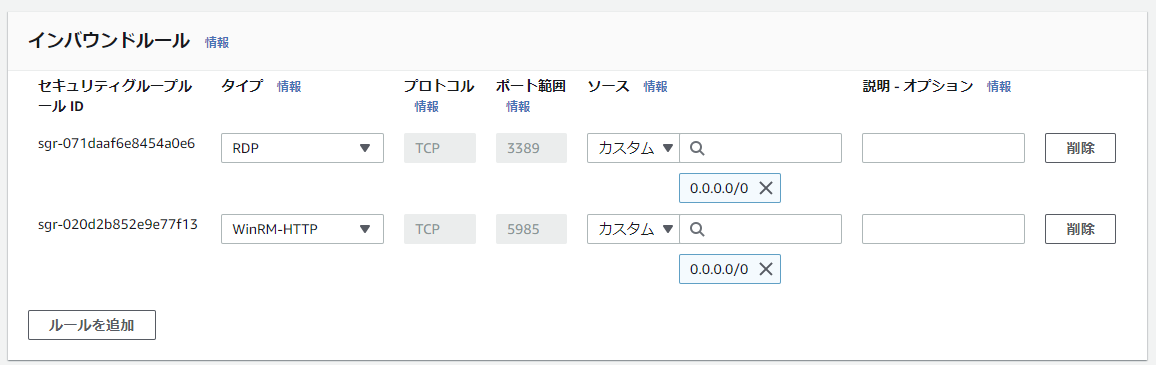
AWS では、インスタンスに対して「WinRM-HTTP(5985 番ポート)」もしくは「WinRM-HTTPS(5986 番ポート)」を開放します。
サーバ側の設定

Windows Server はデフォルトで WinRM のサービスが起動しており、有効になっています。また、ファイアウォールの Private と Domain プロファイルで WinRM のポートが開放済みになっています。そのため、ドメイン環境であればサーバに一度もログインしなくてもリモート接続が可能です。

 1
 2
 3
 4
 5
 6
 7
 8
 9
10
11
12
13
14
15
16
17
18
19
20
21
22
PS C:\Users\Administrator> Get-NetFirewallRule -Name 'WINRM-HTTP-In-TCP'

Name                          : WINRM-HTTP-In-TCP
DisplayName                   : Windows Remote Management (HTTP-In)
Description                   : Inbound rule for Windows Remote Management via WS-Management. [TCP 5985]
DisplayGroup                  : Windows Remote Management
Group                         : @FirewallAPI.dll,-30267
Enabled                       : True
Profile                       : Domain, Private
Platform                      : {}
Direction                     : Inbound
Action                        : Allow
EdgeTraversalPolicy           : Block
LooseSourceMapping            : False
LocalOnlyMapping              : False
Owner                         :
PrimaryStatus                 : OK
Status                        : The rule was parsed successfully from the store. (65536)
EnforcementStatus             : NotApplicable
PolicyStoreSource             : PersistentStore
PolicyStoreSourceType         : Local
RemoteDynamicKeywordAddresses : {}

ただし Public プロファイルではこのポートが開放されていないため、インターネット越しなどドメイン以外の環境から接続する場合は、いったん RDP でログインしてから次のコマンドを実行しておきます。

1
Set-NetFirewallRule -Name 'WINRM-HTTP-In-TCP' -Profile Domain,Public,Private

クライアント側の設定

HTTP の場合、クライアント側の信頼ホスト(TrustedHosts)を設定する必要があります。しかし、設定用コマンドは WinRM サービスが起動していないとエラーになります。クライアント側の設定のためにサービスを起動する必要があるのは不自然なので、マイクロソフトは別の方法を用意しています:直接レジストリを編集する方法です。

ただし、レジストリの直接編集は特にエンタープライズ環境では避けるべきです。ここではコマンドで設定する手順を示します。まず「winrm quickconfig」でサービスを起動し、その後「winrm set」で信頼ホスト(TrustedHosts)を追加します。コマンド内の「x.x.x.x」は、Windows インスタンスのパブリック IP アドレスです。

 1
 2
 3
 4
 5
 6
 7
 8
 9
10
11
12
13
14
15
16
17
18
19
20
21
22
23
24
25
26
27
28
C:\> winrm quickconfig
WinRM はこのコンピューター上で要求を受信するように設定されていません。
次の変更を行う必要があります:

WinRM サービスを開始します。
WinRM サービスの種類を遅延自動開始に設定します。

変更しますか [y/n]? y
WinRM サービスの種類を正しく変更できました。
WinRM サービスが開始されました。
(中略)

C:\> winrm set winrm/config/client @{TrustedHosts="x.x.x.x"}
Client
    NetworkDelayms = 5000
    URLPrefix = wsman
    AllowUnencrypted = false
    Auth
        Basic = true
        Digest = true
        Kerberos = true
        Negotiate = true
        Certificate = true
        CredSSP = false
    DefaultPorts
        HTTP = 5985
        HTTPS = 5986
    TrustedHosts = x.x.x.x

接続してみる

以下のコマンドでリモート接続します。

1
2
3
4
5
6
7
8
C:\> winrs -u:Administrator -r:http://x.x.x.x:5985 cmd
'http://x.x.x.x:5985' に接続するための 'Administrator' のパスワードを入力してください:
Microsoft Windows [Version 10.0.20348.1668]
(c) Microsoft Corporation. All rights reserved.

C:\Users\Administrator> hostname
hostname
EC2AMAZ-VT3DD7Q

このようにコマンドを実行できます。PowerShell も起動でき、cmdlet を実行できます。

2. PowerShell Remoting over WinRM

PowerShell Remoting には 2 つの方式があります。1 つは WinRM ベース、もう 1 つは SSH ベースです。

WinRM ベースの PowerShell Remoting は Windows からの接続のみをサポートします。WinRM は Windows 上にしか存在しないためです。一方、SSH ベースの PowerShell Remoting はクロスプラットフォーム対応であり、Windows から Linux、Linux から Windows などの接続をサポートします。ただし SSH ベースは Windows PowerShell をサポートしておらず、PowerShell 6.0(PowerShell Core)以降が必要です。そのため、サーバ側に PowerShell のインストールが必要になります(Windows PowerShell と PowerShell は別物です)。

WinRM ベースの PowerShell Remoting は、前述の WinRM の仕組みをそのまま利用するため、サーバ側・クライアント側ともに同様の事前設定が必要です。また、EC2 側のポート開放(5985 もしくは 5986)も忘れないようにしましょう。接続時は winrs コマンドの代わりに、PowerShell で Enter-PSSession を利用します。

 1
 2
 3
 4
 5
 6
 7
 8
 9
10
11
12
13
14
PS C:\WINDOWS\system32> Enter-PSSession -ComputerName x.x.x.x -Credential Administrator
[x.x.x.x]: PS C:\Users\Administrator\Documents>
[x.x.x.x]: PS C:\Users\Administrator\Documents> $PSVersionTable

Name                           Value
---- -----
PSVersion                      5.1.20348.1366
PSEdition                      Desktop
PSCompatibleVersions           {1.0, 2.0, 3.0, 4.0...}
BuildVersion                   10.0.20348.1366
CLRVersion                     4.0.30319.42000
WSManStackVersion              3.0
PSRemotingProtocolVersion      2.3
SerializationVersion           1.1.0.1

ちなみに HTTPS で接続する場合は、以下のコマンドを利用します。

1
2
$ssloption = New-PsSessionOption –SkipCACheck -SkipCNCheck
Enter-PSSession -ComputerName x.x.x.x -Credential Administrator -UseSSL -SessionOption $ssloption

3. SSH

現在の Windows サーバのリモート CLI 管理では、SSH が最も簡単な方法です。Windows Server 2019 以降、また Windows 10 以降の Windows OS は標準で OpenSSH をサポートしています。デフォルトで SSH サーバがインストールされているわけではありませんが、コマンド 1 つでインストールと構成ができるため、複雑な設定は不要です。

まずは念のため OpenSSH のクライアントとサーバのインストール状況を確認します。

1
2
3
4
5
6
7
PS C:\Users\Administrator> Get-WindowsCapability -Online | Where-Object Name -like 'OpenSSH*'

Name  : OpenSSH.Client~~~~0.0.1.0
State : Installed

Name  : OpenSSH.Server~~~~0.0.1.0
State : NotPresent

OpenSSH サーバがインストールされていないので、インストールします。

1
2
3
4
5
PS C:\Users\Administrator> Add-WindowsCapability -Online -Name OpenSSH.Server~~~~0.0.1.0

Path          :
Online        : True
RestartNeeded : False

sshd サービスを起動し、自動起動に設定します。

1
2
PS C:\Users\Administrator> Start-Service sshd
PS C:\Users\Administrator> Set-Service -Name sshd -StartupType 'Automatic'

以上でサーバ側の設定は完了です。AWS 上で SSH の 22 番ポートを開放すれば、クライアントから SSH で接続できるようになるはずです。

4. PowerShell Remoting over SSH

SSH ベースの PowerShell Remoting は、クライアント側もサーバ側も Windows PowerShell ではなく、PowerShell 6.0(PowerShell Core)以降が必要です。Server Core で最新の PowerShell をインストールするには、MSI パッケージを利用すると良いでしょう。

1
2
3
4
5
PS C:\Users\Administrator> $URI="https://github.com/PowerShell/PowerShell/releases/download/v7.3.4/PowerShell-7.3.4-win-x64.msi"
PS C:\Users\Administrator> $File="PowerShell-7.3.4-win-x64.msi"
PS C:\Users\Administrator> Invoke-WebRequest -URI $URI -OutFile $File -UseBasicParsing

PS C:\Users\Administrator> start .\PowerShell-7.3.4-win-x64.msi

また、SSH ベースの PowerShell Remoting では SSH が前提なので、前述の手順で OpenSSH サーバをインストールしておきます。インストール後、sshd_config ファイルを編集して SSH の Subsystem を設定します。

1
PS C:\Program Files\PowerShell\7> notepad $env:ProgramData\ssh\sshd_config

こちらの公式手順に従い、Subsystem powershell c:/progra~1/powershell/7/pwsh.exe -sshs -nologo を追記します。
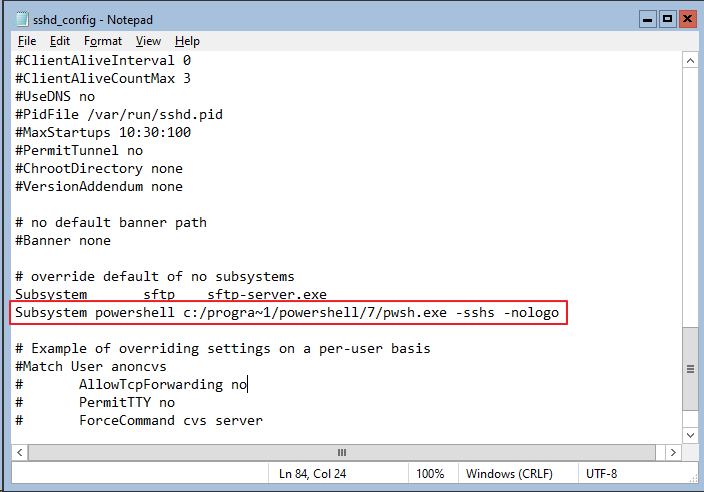
設定ファイルを保存して、sshd を再起動します。

1
PS C:\Program Files\PowerShell\7> Restart-Service sshd

サーバ側の設定は以上で完了です。では、クライアントから接続してみます。

1
2
3
4
5
6
7
8
PS C:\Program Files\PowerShell\7> Enter-PSSession -HostName x.x.x.x -UserName Administrator
Administrator@x.x.x.x's password:
[Administrator@x.x.x.x]: PS C:\Users\Administrator\Documents>
[Administrator@x.x.x.x]: PS C:\Users\Administrator\Documents> Get-ComputerInfo | Select-Object OsName,WindowsInstallationType

OsName                                   WindowsInstallationType
------ -----------------------
Microsoft Windows Server 2022 Datacenter Server Core

ここで注意したいのは、Enter-PSSession コマンドは over WinRM と over SSH の両方をサポートしており、指定するパラメータによって使う方式が決まることです。例えば次の 2 つのコマンドでは、前者が over WinRM、後者が over SSH になります。

1
2
Enter-PSSession -ComputerName x.x.x.x -Credential Administrator
Enter-PSSession -HostName x.x.x.x -UserName Administrator